 Beau
BeauHow to Add HTML to WordPress, Squarespace, Webflow, or Wix
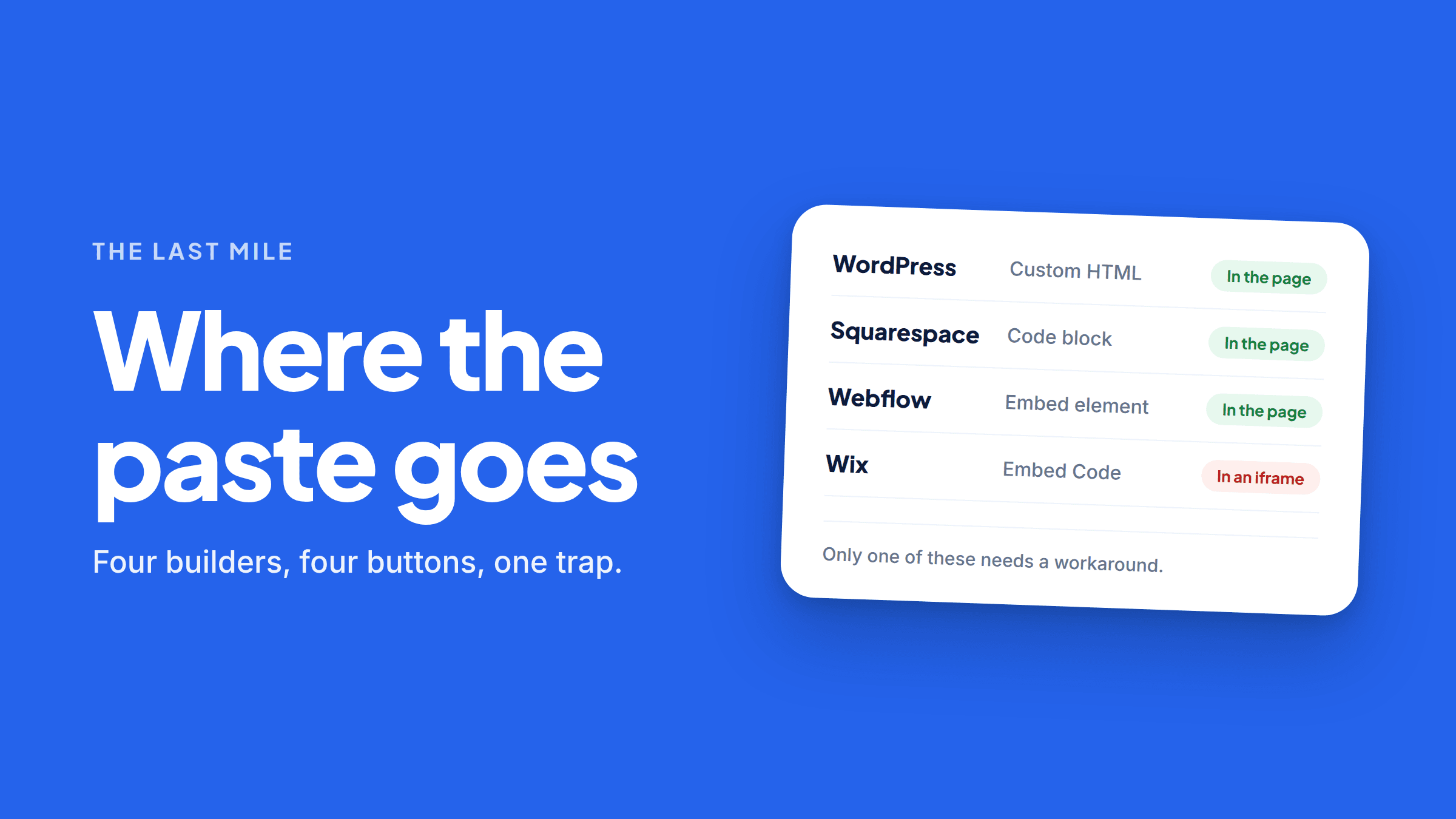
Four builders, four different buttons, and one trap that quietly cancels the whole thing.
You've got a block of HTML — a Q&A section, some structured data, a chunk of content you want AI answer engines to actually read. Now you need to get it onto your website.
This is the step that stops people. Not because it's hard, but because every website builder calls it something different and hides it in a different place. So here's each one, in order, plus the check that tells you whether it worked.
Skip to yours, but read the last two sections either way. They're the part that matters.
WordPress
If you're using the block editor (most modern sites):
- Open the page or post you want to edit.
- Click the + button where you want the content to go.
- Search for Custom HTML and select it.
- Paste your HTML into the box.
- Click Preview on the block to check it looks right, then Update the page.
If you're using the classic editor:
- Open the page.
- Click the Text tab (not Visual) in the top-right of the editor.
- Scroll to where you want the content and paste it in.
- Update the page.
If you're using a page builder — Elementor, Divi, Beaver Builder — look for a widget or module called HTML, Code, or Raw HTML and drag it onto the page. Same idea.
One warning: don't paste into a Paragraph block and expect it to work. WordPress will escape the tags and you'll see your HTML printed on the page as visible text. If you see angle brackets on your live page, that's what happened.
Squarespace
- Open the page in the editor.
- Click an insert point and choose Code from the block menu.
- Set the mode to HTML (it's the default) and make sure Display Source is unchecked.
- Paste your HTML in and click outside the block.
- Save the page.
Squarespace shows a placeholder box in the editor rather than the live content — that's normal. Click Done and view the live page to see it properly.
Note that Code Blocks are available on all paid Squarespace plans, but not on trial sites.
Webflow
- Open your project in the Designer.
- Drag an Embed element (under Components, sometimes listed as HTML Embed) onto the page.
- Paste your HTML into the code editor that opens, then click Save & Close.
- Here's the part people miss: you have to publish the site. Embed content doesn't render in the Designer canvas or in preview mode — only on the published site.
Webflow has a size limit on embed code (around 50,000 characters), which is far more than a Q&A block will ever need, but worth knowing if you're pasting something enormous.
Wix — read this part carefully
Wix will let you add HTML. The problem is how it adds it.
In the Wix editor, the tool is called Embed Code or, more revealingly, HTML iFrame. Wix's own developer documentation describes it exactly that way — an element for embedding raw HTML or another website inside your page. And that's the issue.
An iframe is a separate little window inside your page. The content inside it doesn't belong to your page — it's a different document, loaded separately. So when a crawler reads your page, the words inside that iframe aren't part of what it reads. Wix says as much about its own site search: embedded iframes, including HTML widgets and embedded sites, aren't searchable by it.
If your own site's search can't see it, don't count on an AI crawler seeing it either.
What to do on Wix instead: put the content in as native text. Add a regular text element, type or paste your questions and answers into it as plain text, and format the questions as headings using Wix's own heading styles. It's more manual and it looks less tidy in the editor, but the words end up in your actual page — which is the entire point.
If you need structured data (JSON-LD) as well, add that separately through Settings → Custom
Code, placed in the <head>. That path does inject into the page itself rather than an iframe.
The check that tells you if it worked
Do this. It takes twenty seconds and it's the only thing that actually confirms the job is done.
- Open your live page in a browser — not the editor, the real published page.
- Right-click anywhere and choose View Page Source. You'll get a wall of code. Don't panic.
- Press Ctrl+F (or Cmd+F on a Mac) and search for a distinctive phrase from your content — something like "no after-hours surcharge" or one of your actual answers.
- If you find it, you're done. The text is really in the page, and any crawler that fetches your page gets it.
- If you don't find it, the content is either inside an iframe or being built by JavaScript after the page loads. Either way, an AI crawler doesn't see it.
View Page Source shows you the raw HTML the server sent — which is essentially what a crawler gets. Inspect Element shows you the page after JavaScript has run, which is what a human sees. That difference is the entire problem, so use View Page Source, not Inspect.
Why any of this matters
It's worth saying plainly why we're being this fussy about a paste operation.
Most AI crawlers don't run JavaScript. They fetch the raw HTML of your page and move on. So content that gets built by a script after page load — which describes almost every FAQ plugin and accordion widget out there — is perfectly visible to your visitors and completely absent for ChatGPT, Perplexity, and the engines behind Google's AI answers.
Iframes fail for a similar reason. The content is technically on the internet, but it isn't part of your page, so it doesn't count as yours.
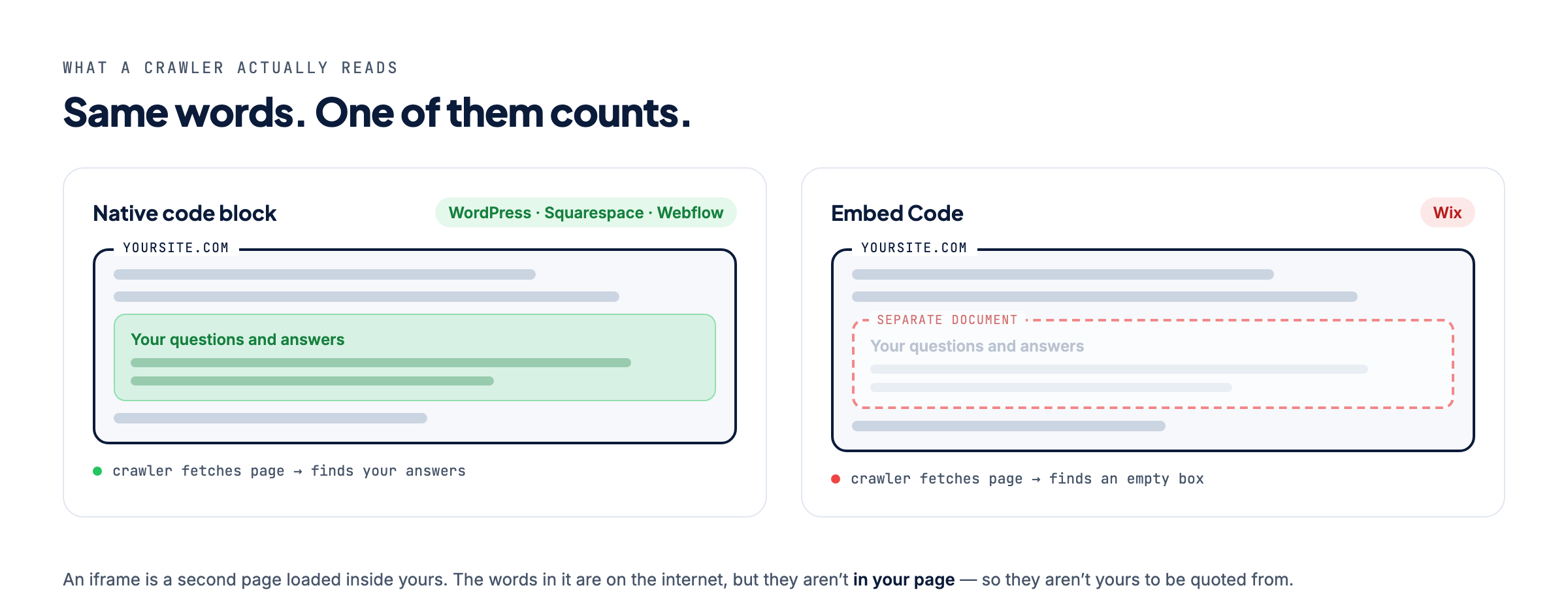
Getting your answers into the page source is the whole game. Everything else in Answer Engine Optimization — writing good answers, adding schema, tracking citations — is built on top of this one thing being true. And this is just a specific case of a rule regular SEO has always had: if a crawler can't read it, it doesn't exist.
Where FaqFlo comes in
FaqFlo gives you the block, tells you where to paste it for your specific builder, and then checks the live page afterward to confirm the text is really there — no JavaScript, no iframe, no guessing.
It also does the part before that: finding the questions people are actually asking AI about businesses like yours, and writing answers built to be quoted. Then it watches whether the engines start naming you.
You can see what AI can currently read on your site in about a minute.
The paste takes a minute. Knowing it worked is the part worth having.
Frequently asked questions
Where is the Custom HTML block in WordPress?
In the block editor, click the + button, search for "Custom HTML," and paste your code into it. In the classic editor, switch from the Visual tab to the Text tab and paste directly into the page.
Why doesn’t my Webflow embed show up on the page?
Embed elements don’t render in the Designer or in preview mode — they only appear once the site is published. If it’s missing on your live site after publishing, check that the embed element isn’t set to hidden on that breakpoint.
Does Wix HTML code get indexed by search engines?
Wix adds embedded HTML inside an iframe, which is a separate document from your page, so the content generally isn’t treated as part of your page. For content you want crawled and quoted, use native Wix text elements instead of the embed tool.
How do I know if my HTML is actually readable by AI?
Open your live page, right-click, choose "View Page Source," and search for a phrase from your content. If the phrase appears there, crawlers can read it; if it only appears in "Inspect Element," it’s being added by JavaScript and most AI crawlers will miss it.
Do I need a plugin to add HTML to my site?
No, and you’re better off without one. Every major builder has a native code or HTML block, and going native means your content lands in the page itself rather than depending on a plugin that may render it with JavaScript.

Written by
Beau
👋 Hi, I’m Beau. I’ve spent almost 20 years in marketing — long enough to watch the whole game change more than once. I was there when SEO was the answer, then social, then content, and now the biggest shift yet: people asking AI instead of Googling. Somewhere along the way I got tired of watching good small businesses do everything “right” and still stay invisible to the tools that increasingly decide who gets found. That’s why I built FaqFlo — my mission is to help you grow your business in the modern world of AI, so you become the answer, not just another link nobody clicks.
Looking for something else?
Search the archive by title, summary, or the questions a post answers.